Introduction
This article will describe the operations to get troubleshooting logs of Milesight gateways. After capture please click here to send log files to Milesight technical support.
Configuration
UG56/UG6x
1. Go to Maintenance > Log > Log Settings to change log severity as Debug.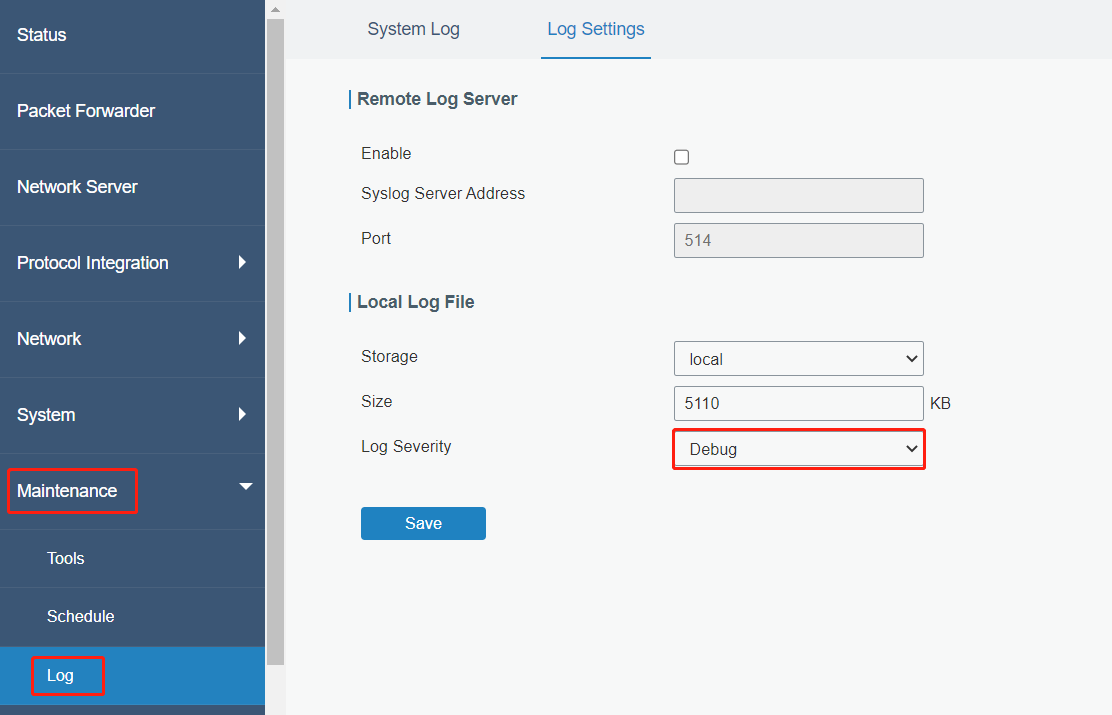
2. Replicate the device problem.
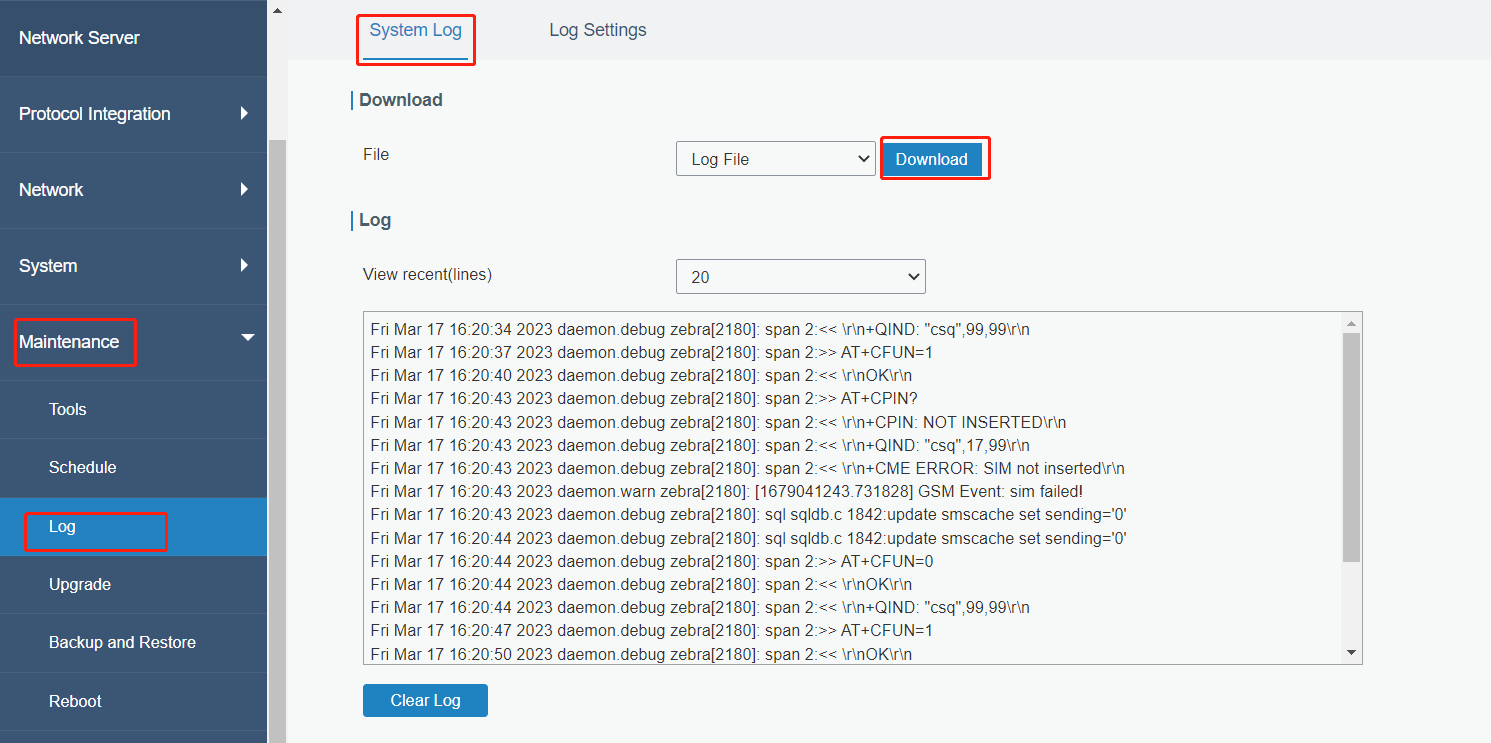
3. Go to Maintenance > Log > System Log to download log files and send all logs to Milesight technical support.
Note: since the log files are too large, please do not send log files with email attachment. Please send the files with a link.
SG50/UG63
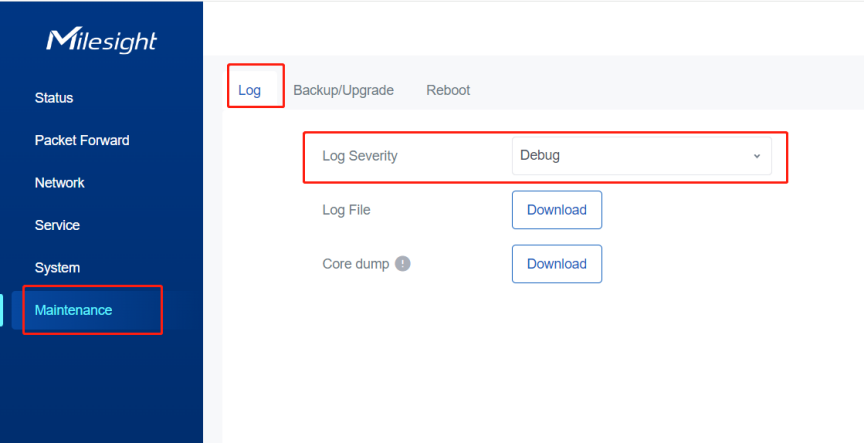
1. Go to Maintenance > Log to change log severity as Debug.
2. Replicate the device problem.
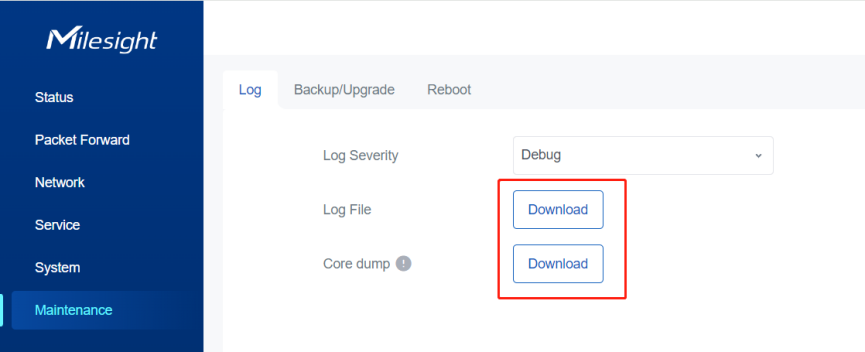
3. Go to Maintenance > Log to download log files and send to Milesight technical support.
Note: due to the memory limitation, the device can only store log files for a few hours.
------END-----
Was this article helpful?
That’s Great!
Thank you for your feedback
Sorry! We couldn't be helpful
Thank you for your feedback
Feedback sent
We appreciate your effort and will try to fix the article