Description
How to add VS135 to Beaver IoT and display real-time and historical data.
Requirement
- l Milesight VS135-Lora v1.0.9 version or above
- l Milesight Gateway UG56/UG65/UG67
Configuration
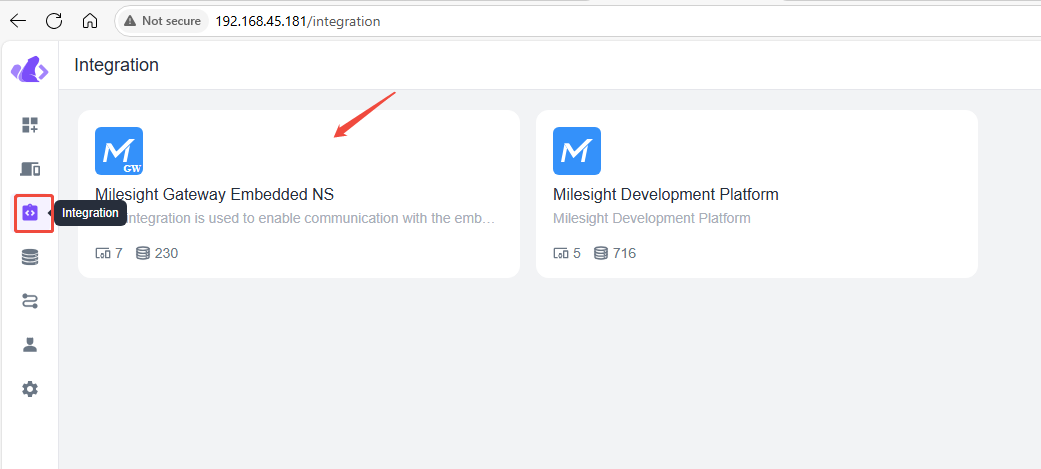
Step 1:First, add the corresponding gateway to Beaver IoT. Here, we will take the gateway with built-in NS as an example.
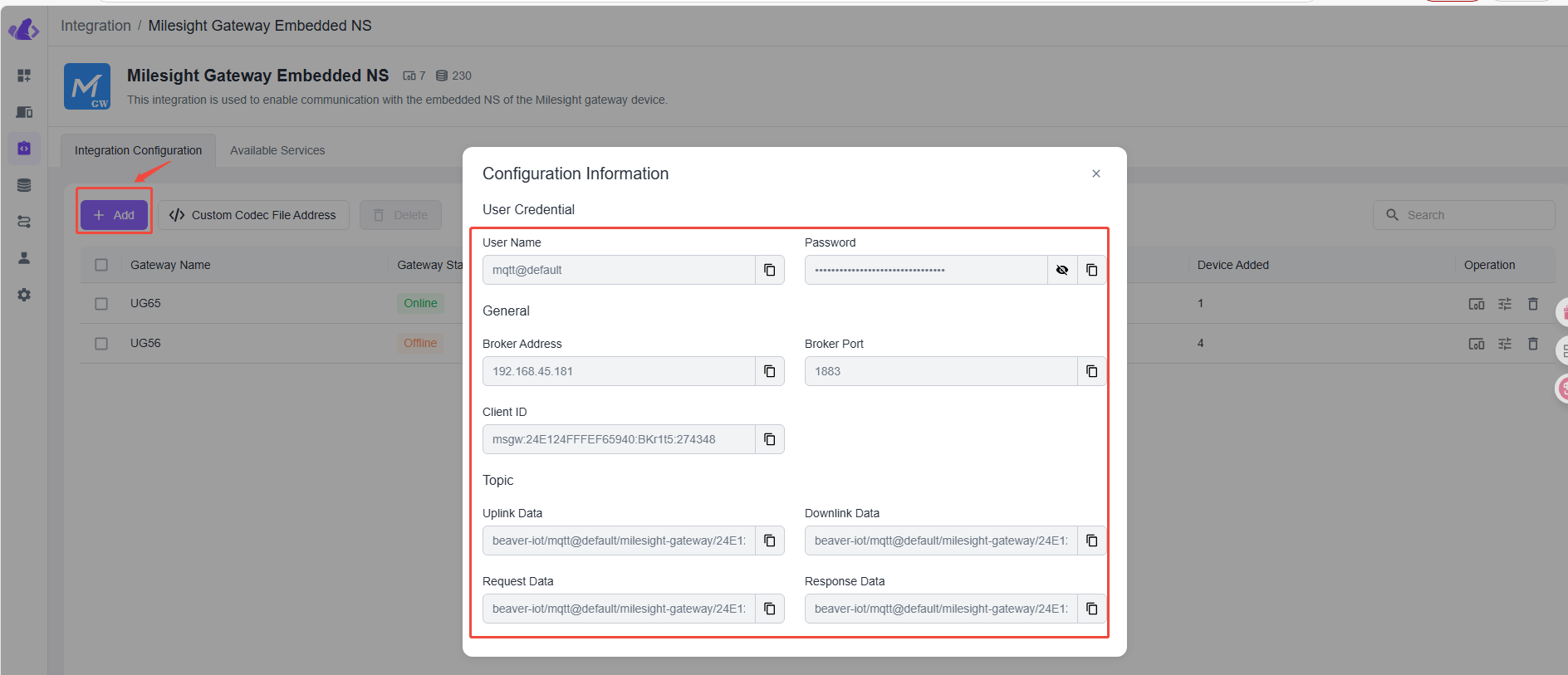
Fill in these generated MQTT information into the corresponding Application of the gateway.
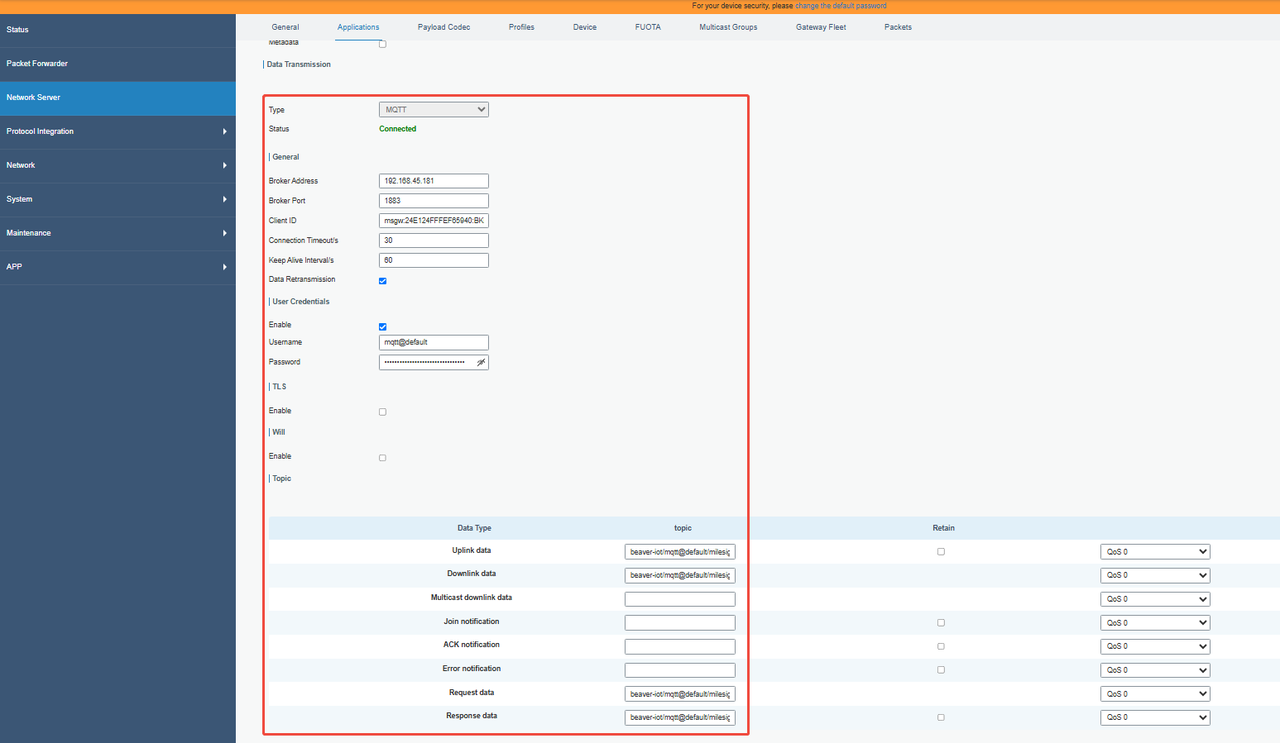
After the gateway shows "Connected", you can continue to select the corresponding Application in Beaver Iot and complete the addition operation.
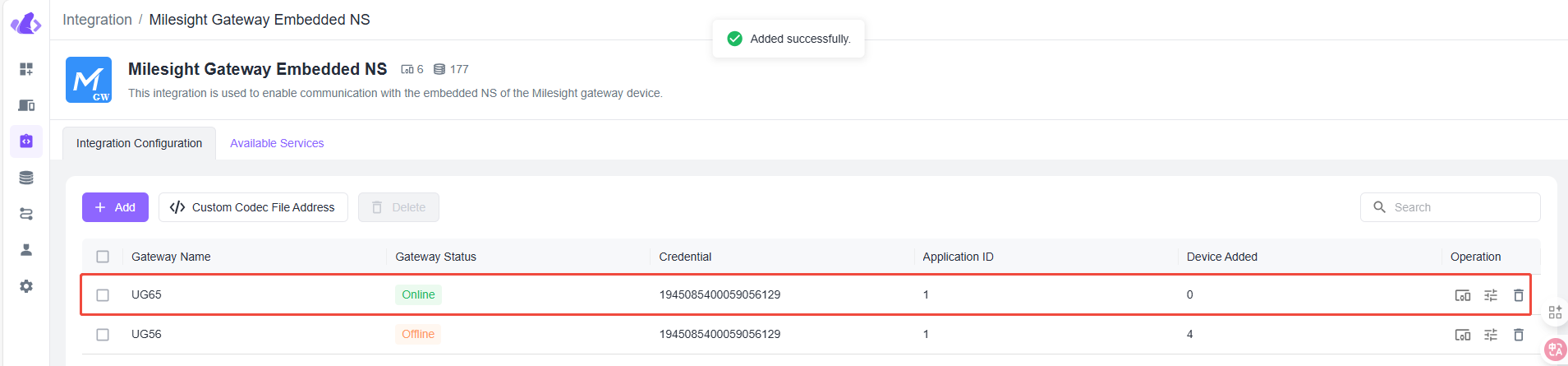
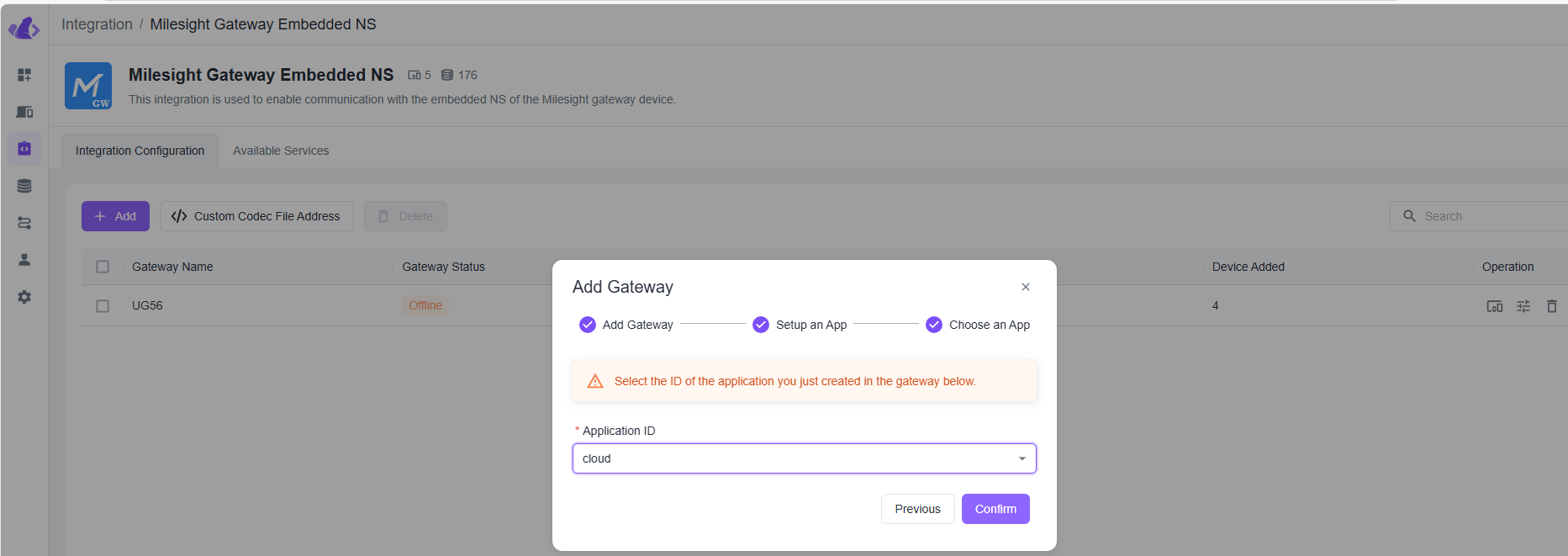
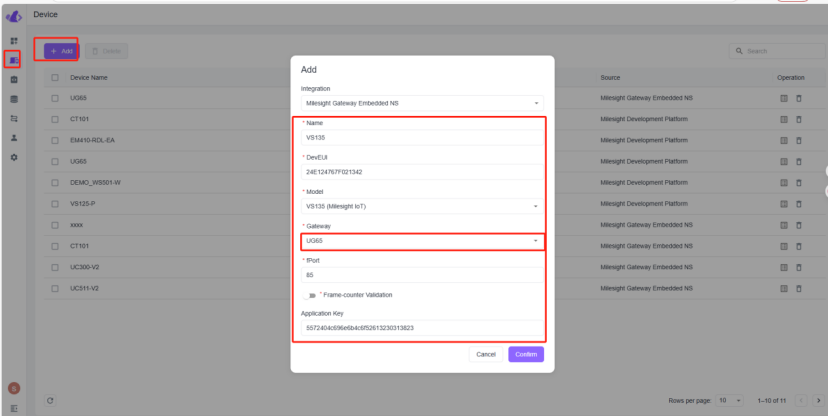
Step 2: After the gateway is online on Beaver IoT, the VS135 device can be added to Beaver IoT.

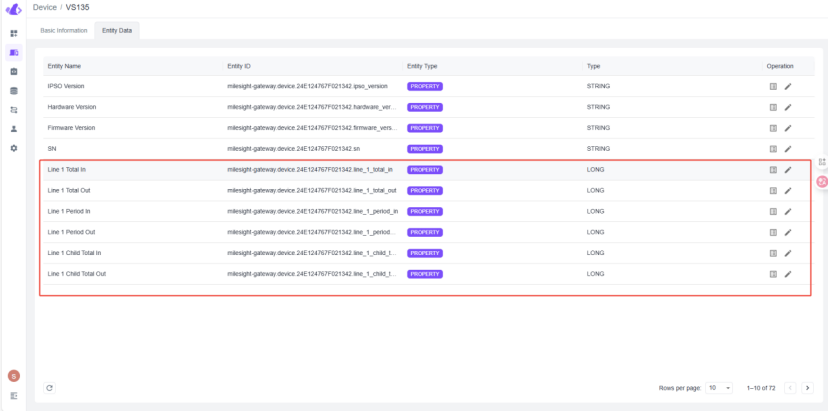
Step 3: Confirm whether the data of VS135 has been reported and whether the custom name attribute field has been set so as to facilitate the subsequent data processing for distinction.

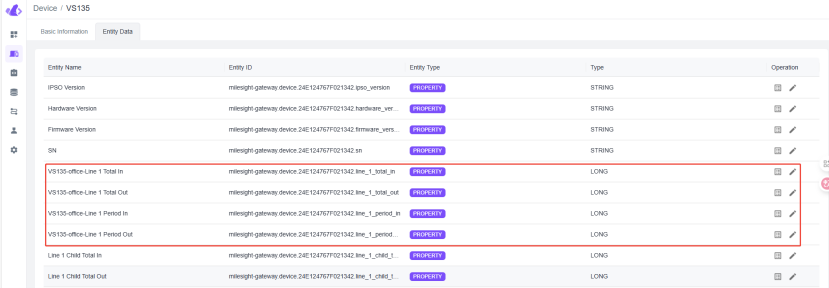
For example, rename as follows:
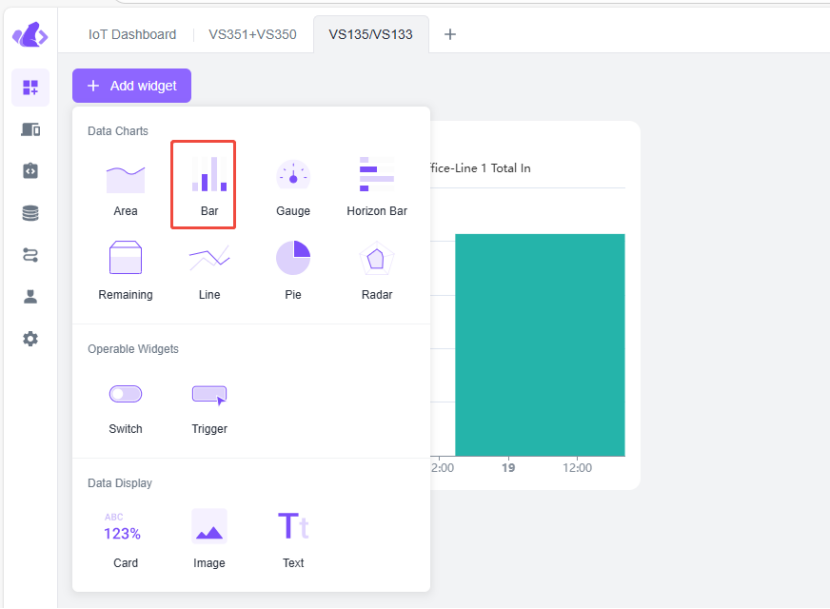
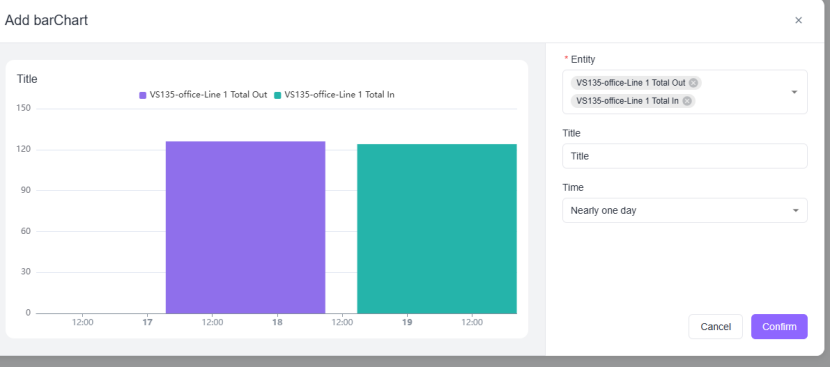
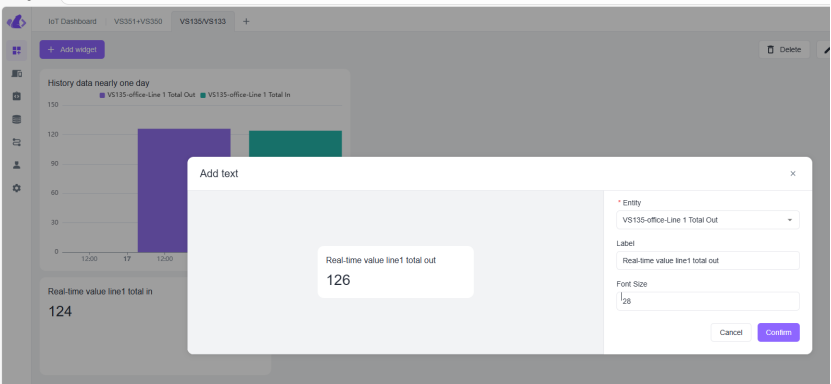
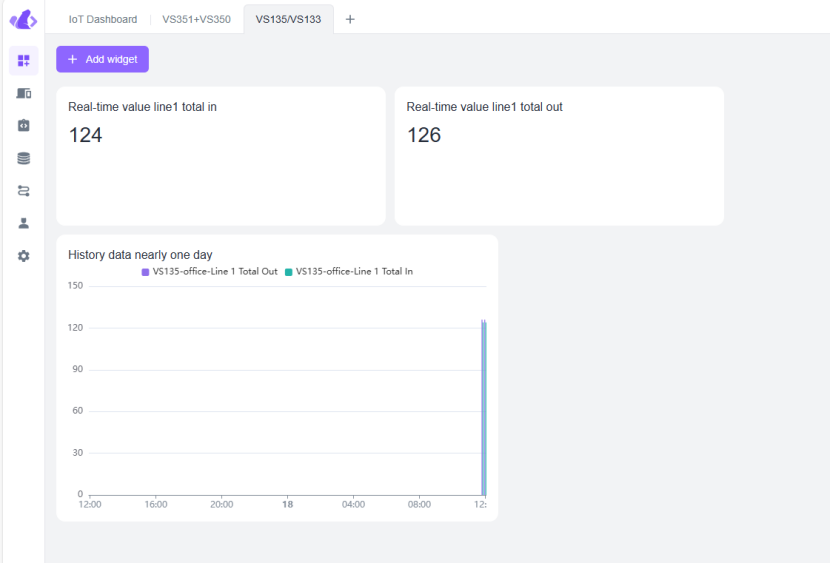
Step 4: Add "Bar" to display the data changes of VS135 over a day, and add "text" type to display the real-time data of VS135.
The effect is as follows:
-------END-----
Was this article helpful?
That’s Great!
Thank you for your feedback
Sorry! We couldn't be helpful
Thank you for your feedback
Feedback sent
We appreciate your effort and will try to fix the article