Description
This article primarily explains how to integrate the VS121-P with a BMS system via the BACnet protocol.
Requirement
l VS121-P with firmware version 31.7.0.85 and above.
- l BACnet Client tool: take Yabe as example
Configuration
Step 1:
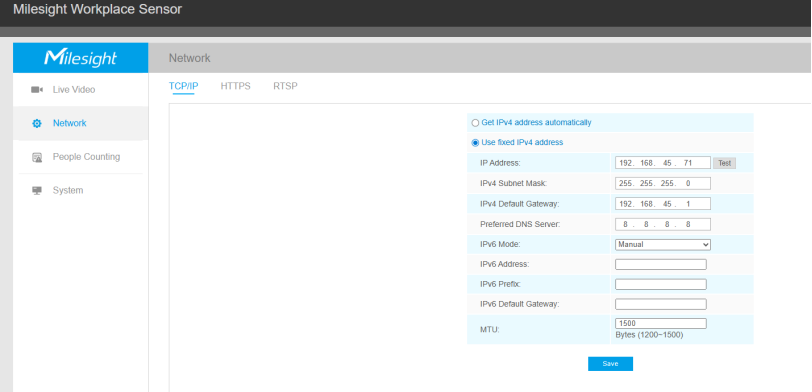
Set the IP address of the VS121 to be in the same local area network (LAN) as the Yabe client.
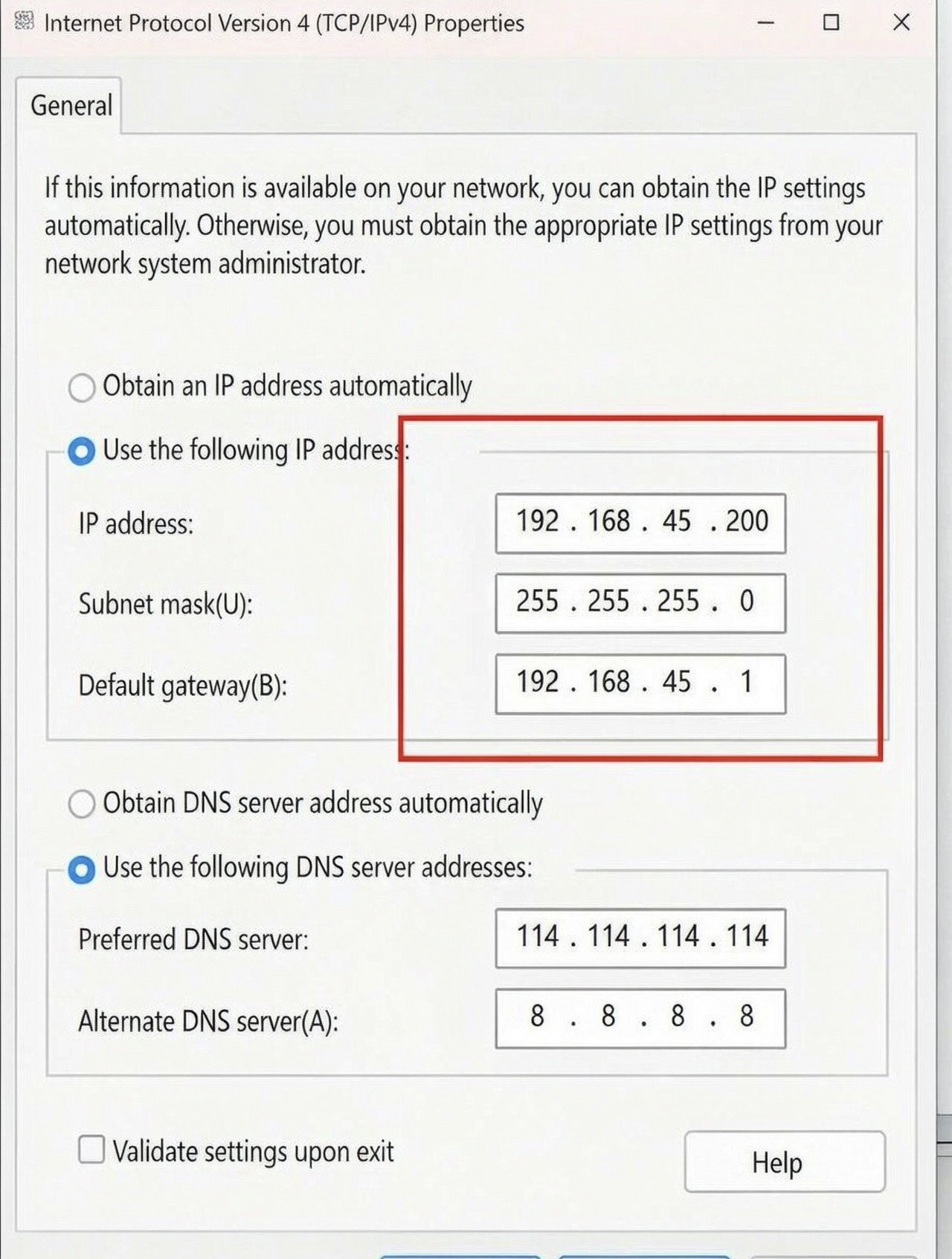
The computer’s IP address should also be configured within the 192.168.45.0 subnet.
Step 2:
Currently, BACnet is configured separately under two modules: Region People Counting and Line Crossing People Counting. Please refer to the diagram for their locations.
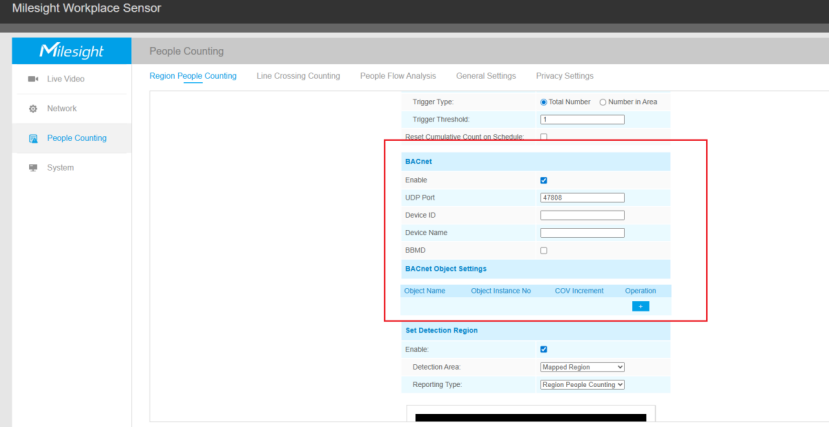
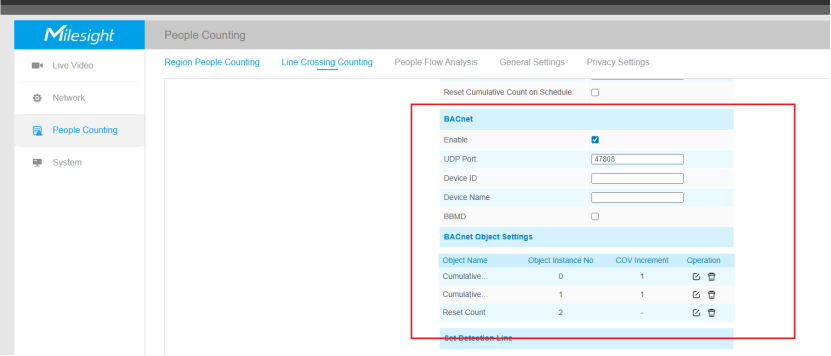
The following procedure will use Region People Counting as the configuration example.
Step 3:
Enable the Region People Counting function and draw an area as an example.
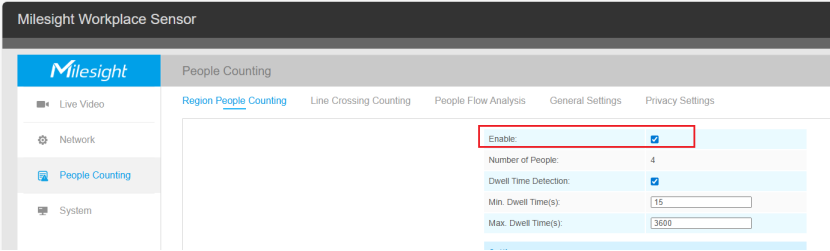
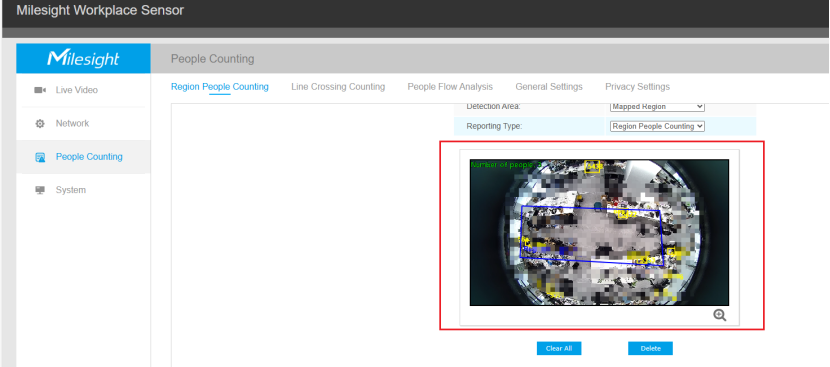
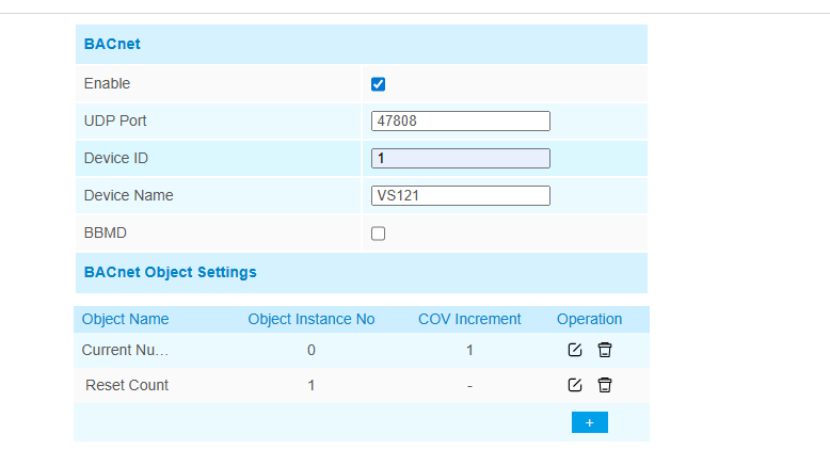
Then activate the BACnet settings.
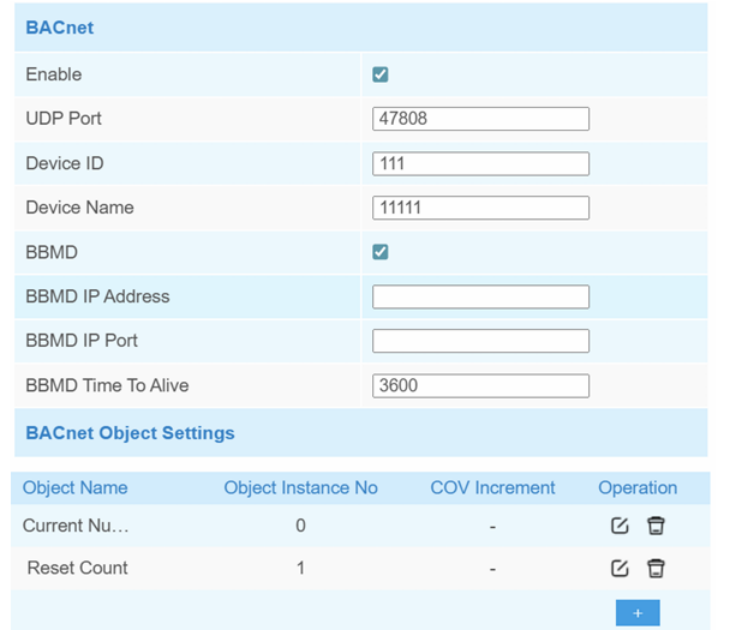
UDP Port: Set communication port of BACnet/IP. Range: 1-65535. The default port is 47808.
Device ID: The unique BACnet device identifier that must avoid conflicts with other de vices. The default value is the 6th to 11th characters of SN.
Device Name: The name to represent the device.
BBMD: Enable BBMD(BACnet/IP Broadcast Management Device) if BACnet devices of different network subnets should work together.
IP Address: Fill in the IP address of BBMD device or external de vice registrar.
IP Port: Fill in the UDP/IP port for external device registration.
Time To Live: Number of seconds used on external device regis tration.
BACnet Object Settings:
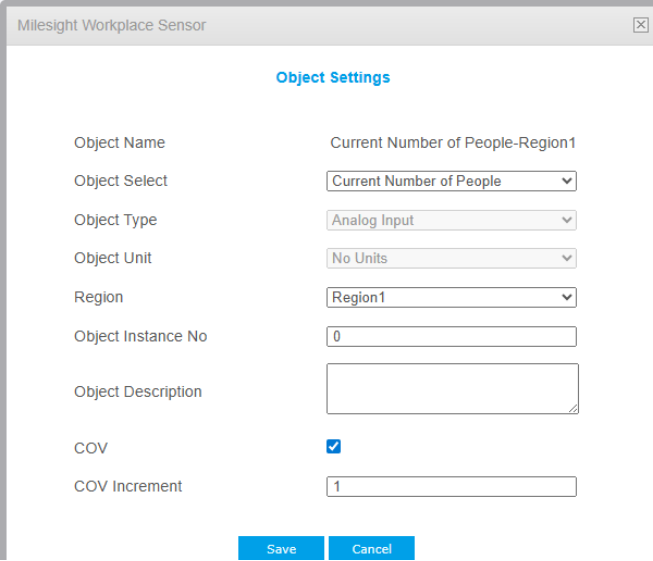
Object Name: Show the name of the BACnet object.
Object Select: Select the variable data for the device as an object.
Region: Select one of the detection region which object you select.
Object Instance No.: Set the unique object instance number.
Object Description: Set the object description.
COV: Enable, when object value changes, it will send notification of new value to BACnet client.
COV Increment: Set the minimum change value for the current object.
Step 4:
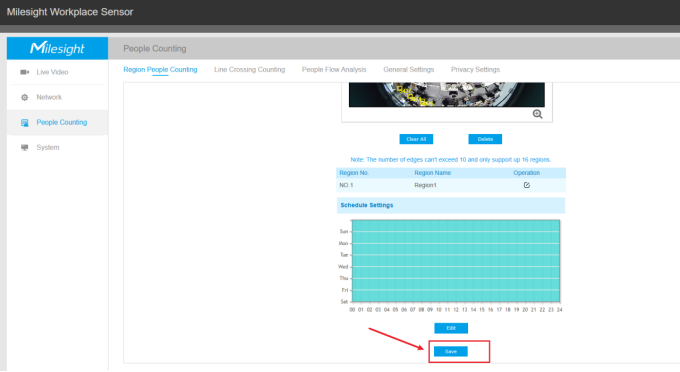
After adding the BACnet Object and completing all the configurations, please make sure to click "Save" at the bottom to save all settings..
Step 5:
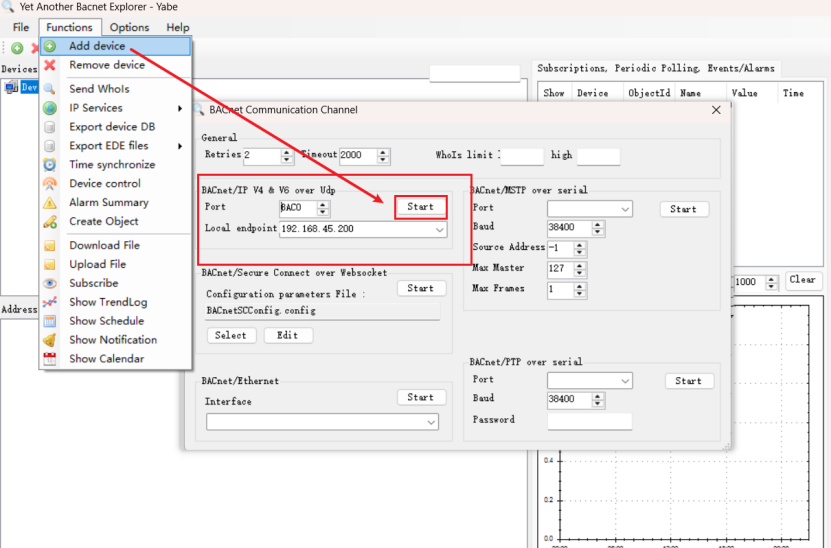
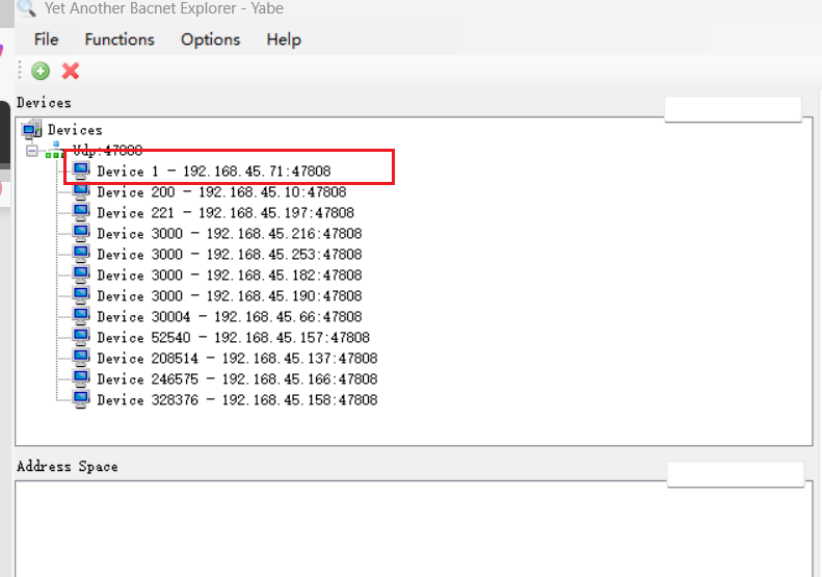
Open Yabe BACnet client tool, click Add device to scan the devices, then you can find the BACnet server device according to the Device ID and check the object list.
Then click the object to check all the properties of this object.
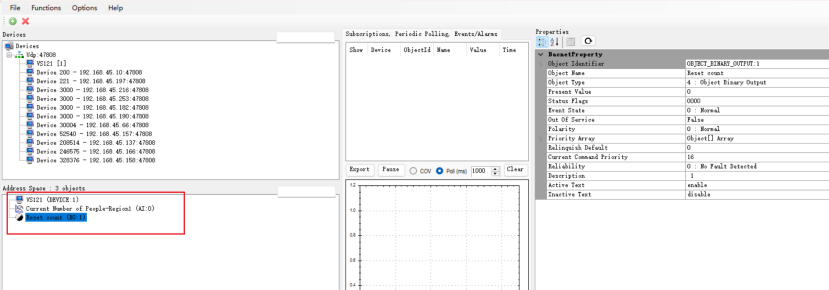
Please note the following two special types of BACnet objects:
1. For the reset count object, the Inactive text defaults to 0 and the Active text defaults to 1. The default release state is InActive (0). After each reset operation is completed, the corresponding object value will be restored to InActive.
2. For the area occupancy status (Occupancy), the Active text defaults to "Occupied" and the Inactive text defaults to "Vacant" (0 indicates Vacant, 1 indicates Occupied).
——END——
Was this article helpful?
That’s Great!
Thank you for your feedback
Sorry! We couldn't be helpful
Thank you for your feedback
Feedback sent
We appreciate your effort and will try to fix the article